Changing or Updating a Work Order Status Follow

There are three ways that you can change the status of a work order:
1. Through the IVR system
2. From the Work Order List View Screen (Bulk Status Update)
3. Inside a work order
Your work order status should reflect what is currently being done with a specific work order:
If you are working on the job – status should be in “In Progress”
If you are waiting on materials – status should be in “Waiting on Material"
If you need to submit it a quote – status should be in “Pending Quote”
If the job is complete and you are ready to invoice – status should be in “Pending Vendor Invoice”
NOTE: Anything and everything that you are able to do within a work order is always dependent on the current status of that specific work order.
Changing the status with the IVR
You can accept a work order with the IVR – you will dial into the IVR line and enter in your Pin and Work Order number. It will then ask you if you would like to accept this work order.
Once the work order is accepted you can then move forward with Checking In. Once you Check Out you can then change the status of a work order to one of the below options:
Press one (1) if the job has been completed – moves to “Pending Vendor Invoice”
Press two (2) if the job requires a quote – moves to “Pending Quote”
Press three (3) if the job requires more materials – moves to “Waiting on Materials”
Press four (4) if the job requires a return visit – moves to “Follow Up”
Press five (5) if the job has been completed and no invoice will be submitted – moves the work order to “Closed”
Changing the status from the Work Order List View screen
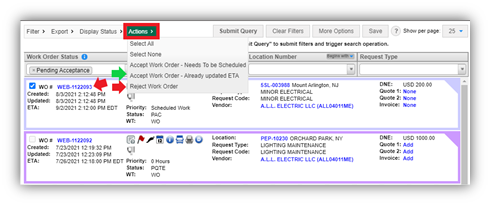
While you are still in your Work Order List view you have the ability to update the status of a work order in groups as well as individually. This is a time saving tool and is very helpful if you have multiple work orders to update at the same time.
Once you click on the box next to one of the work orders, you will wait a few seconds and the Actions tab will appear, this is next to Display status. Until you click on one of those boxes this option is not available.
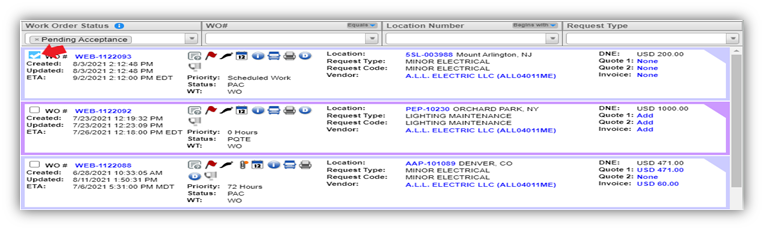
As you can see once you select the box next to the work order number the actions tab is now there. You can either change one work order status or pick “Select All”. If you choose “Select All” it will update all the work orders in that specific status at the same time
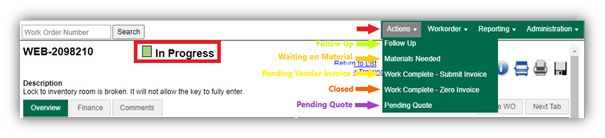
Changing the status from Within the Work Order
Click on the WEB/PM Work Order number link on the Data Stripe to open the Work Order. From the “Actions” drop down list select the status you would like to change the work order to. Wait for it to refresh and then the status will be changed.

Service Provider further warrants that all materials, equipment and labor supplied to CBRE is and shall be free from errors, faults and defects in workmanship, construction, structural and functional design, material and operations and in conformance with the requirements of this Agreement and the applicable Work Order for a period of twelve (12) months following the completion of the Services to CBRE’s satisfaction; provided, that if any longer warranty period is specified for any materials, equipment or workmanship under any plans or specifications, this Agreement, a Work Order or any manufacturer’s warranty, the longer warranty period shall govern. Service Provider shall ensure that all materials and equipment that have a manufacturer’s warranty are registered with the manufacturer in Client’s name.
Comments
0 comments
Please sign in to leave a comment.