How to Invoice WEB work orders - Mode 2 Follow

Login to www.fmPilot2.com
1. Once you log in you will be brought to the "Vendor Directory" this is where you will click on your client name.
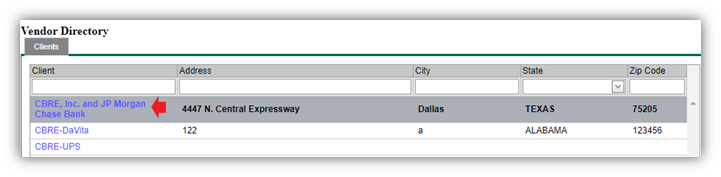
2. You will be brought to your work order list view. Here you will see your open work orders. Once you see the WEB order you need to invoice; click directly on the WEB number.
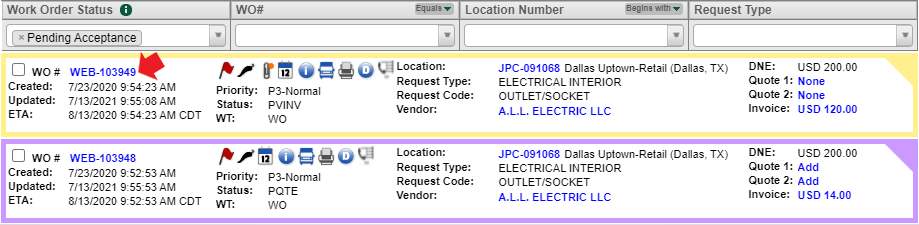
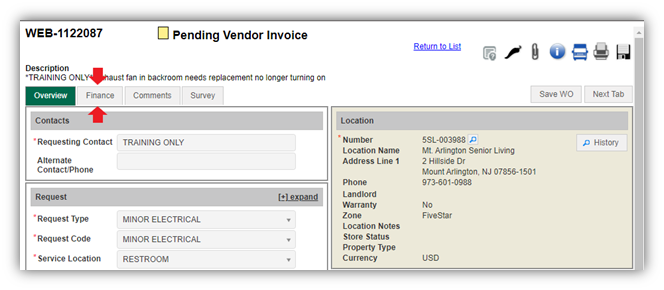
3. Change the status to your work order to “Pending Vendor Invoice”. Click on “Actions” and choose “Work Complete – Submit Invoice”. The status to your work order will update to “Pending Vendor Invoice”

4. Click on the "Finance" tab.
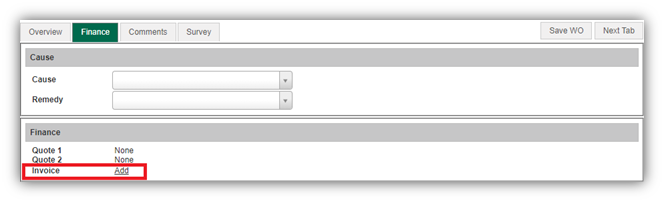
5. Once in the finance section locate the word "Invoice". Click on the "Add" or the dollar amount you see next to Invoice.
Now let's fill out your invoice to get it submitted!
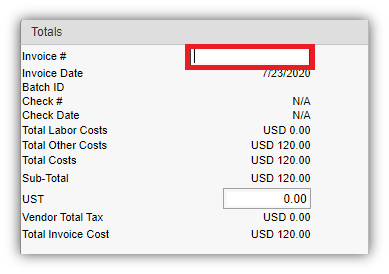
a. Enter your required Invoice Number, this will be your own internal invoice number from your accounting software. accounting software.
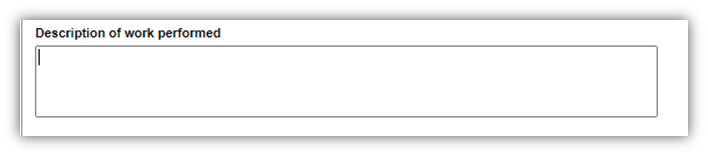
b. Enter your required "Description of Work Performed". Provide details on services completed. Please keep it simple and to the point.
c. Begin adding your line items by double clicking into the empty field under “Charge Type” to select your line item.

d. Once you select your line item you can use the tab button on your keyboard to move to the next spot OR double-click.
- Update your "Item" and "Option", if needed
- Add your description.
- Your hourly rate for Labor and Trip should auto populate.
- Double click under QTY to add your QTY to be charged for.
*Your total for each line will self-populate*
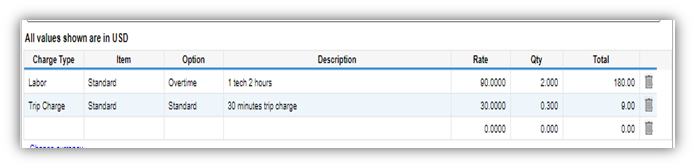
Note: To edit a line item, you will simply double-click in the field that needs to be edited. To delete a line item, you will click on the trash can located to the far right.
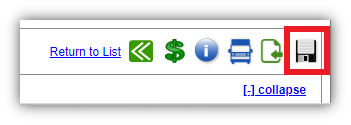
e. Once you have entered all of your invoice details, you will want to make sure to save. To Save Click the floppy disk at the top right of your invoice detail page.
f. Click the paper clip to upload backup documents as needed. You will be able to drag and drop your file into the attachments box that generates. Once your file details show that means your file has been uploaded successfully. Close the attachments box. (i.e. sign off, before/after pictures, etc..)
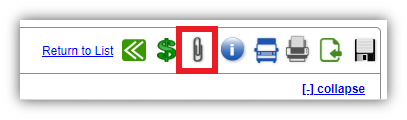
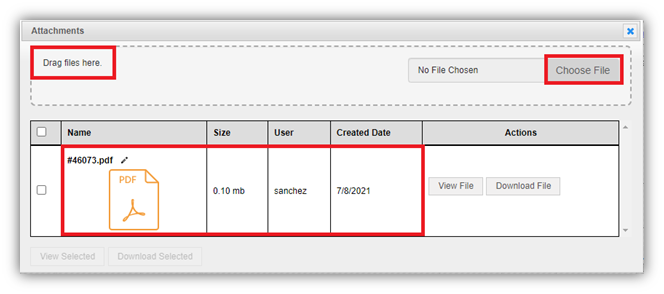
g. Lastly to submit your invoice; you will click “Actions” then select “Submit Invoice" or "Submit Invoice for review”.
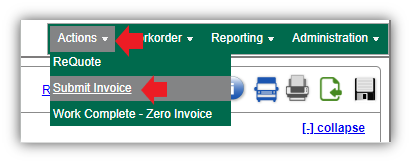
Wait for the page to load and your status at the top of the work order will show:
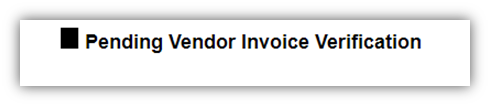
You have submitted your invoice; no further action needs to be taken!

Service Provider further warrants that all materials, equipment and labor supplied to CBRE is and shall be free from errors, faults and defects in workmanship, construction, structural and functional design, material and operations and in conformance with the requirements of this Agreement and the applicable Work Order for a period of twelve (12) months following the completion of the Services to CBRE’s satisfaction; provided, that if any longer warranty period is specified for any materials, equipment or workmanship under any plans or specifications, this Agreement, a Work Order or any manufacturer’s warranty, the longer warranty period shall govern. Service Provider shall ensure that all materials and equipment that have a manufacturer’s warranty are registered with the manufacturer in Client’s name.
Comments
0 comments
Please sign in to leave a comment.